# How to Fix Yellow Cast in Gold Jewelry Photos
Have you ever photographed a beautiful gold ring, only to discover that the final image looks excessively yellow or orange?
Maybe the polished metal appears too warm, the background has a yellow tint, or the diamonds look less clear because they reflect the surrounding lighting.
These are common problems in jewelry photography.
Gold naturally contains warm yellow tones, but incorrect lighting and white balance can exaggerate these colors. The result may be a photograph that looks different from the actual jewelry.
For jewelry stores, online sellers, and photographers, color accuracy is particularly important.
Customers expect the jewelry they receive to resemble the product displayed in photographs. If a yellow-gold ring looks unusually orange or a white-gold necklace appears yellow, the image may create incorrect expectations.
Fortunately, many unwanted color casts can be corrected through careful photo editing.
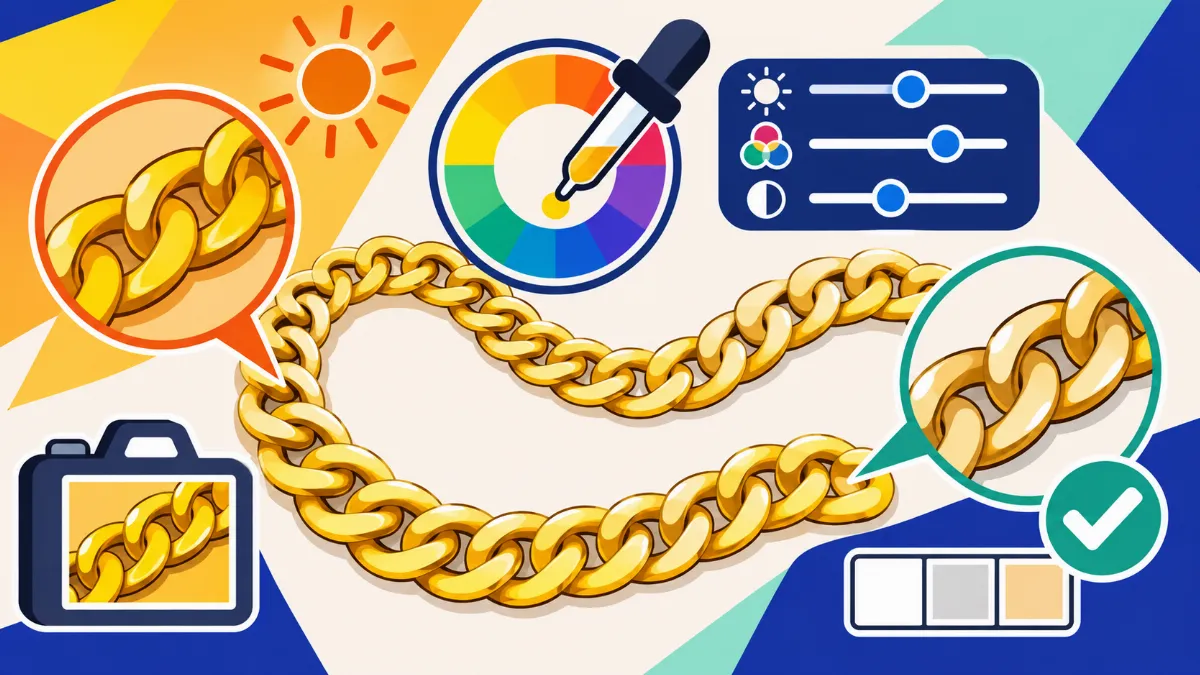
**To fix a yellow cast in gold jewelry photos, start by correcting white balance using a reliable neutral reference. Then refine the temperature, tint, and selective yellow-orange color adjustments while preserving the actual gold color, reflections, and gemstone details.**
In this guide, we will explain why gold jewelry photographs become too yellow, how to correct the problem in Adobe Photoshop and Lightroom, and how to avoid changing the original metal color.
We will also discuss practical photography techniques that can help prevent unwanted yellow tones before the editing process begins.
What Is a Yellow Color Cast in Jewelry Photography?
A yellow color cast is an unwanted yellow tint that affects a photograph.
It may appear across the entire image or within specific areas.
For example, a gold necklace photographed under warm indoor lighting may appear more orange than it does in person.
A white background may develop a cream or yellow tint.
Diamonds may reflect yellow light from the surrounding environment.
In some situations, the jewelry itself is correctly colored, but the background and reflections make the overall photograph appear excessively warm.
It is important to distinguish the natural color of gold from an unwanted color cast.
Yellow gold is supposed to contain yellow tones.
The problem occurs when the photographic conditions make those tones inaccurate.
Natural Gold Color vs. Unwanted Yellow Cast
Natural yellow gold has a warm metallic appearance.
Its exact color depends on the alloy composition, surface finish, and lighting.
An unwanted yellow cast introduces additional color that was not present in the original product or intended lighting.
For example, if the white background behind a gold ring appears yellow, the image may have a white balance problem.
If the ring looks unnaturally orange compared with the actual product, it may require selective color correction.
However, a warm reflection on polished metal is not automatically a defect.
Gold reflects its surroundings, so some color variation is normal.
Why Do Gold Jewelry Photos Look Too Yellow?
Several factors can cause unwanted yellow tones in jewelry photography.
Identifying the source helps determine the best correction.
1. Incorrect White Balance
White balance controls how a camera interprets the color of the light illuminating a scene.
When white balance is incorrect, photographs may appear too warm or too cool.
For example, if a camera records warm indoor lighting without sufficiently compensating for its color, the photograph may appear excessively yellow.
This can affect the jewelry, background, and gemstones.
2. Warm Studio Lighting
Some artificial lights produce warmer color temperatures than others.
Under certain conditions, they may introduce yellow or orange tones.
If the lighting setup is not properly controlled, the photographed gold may look different from the actual jewelry.
3. Mixed Lighting Sources
Using different types of lighting in the same scene can create inconsistent colors.
For example, combining window daylight with warm indoor lamps may produce different color temperatures across the jewelry.
One side of the ring may appear neutral while the other looks orange.
A single global white balance correction may not fully solve this problem.
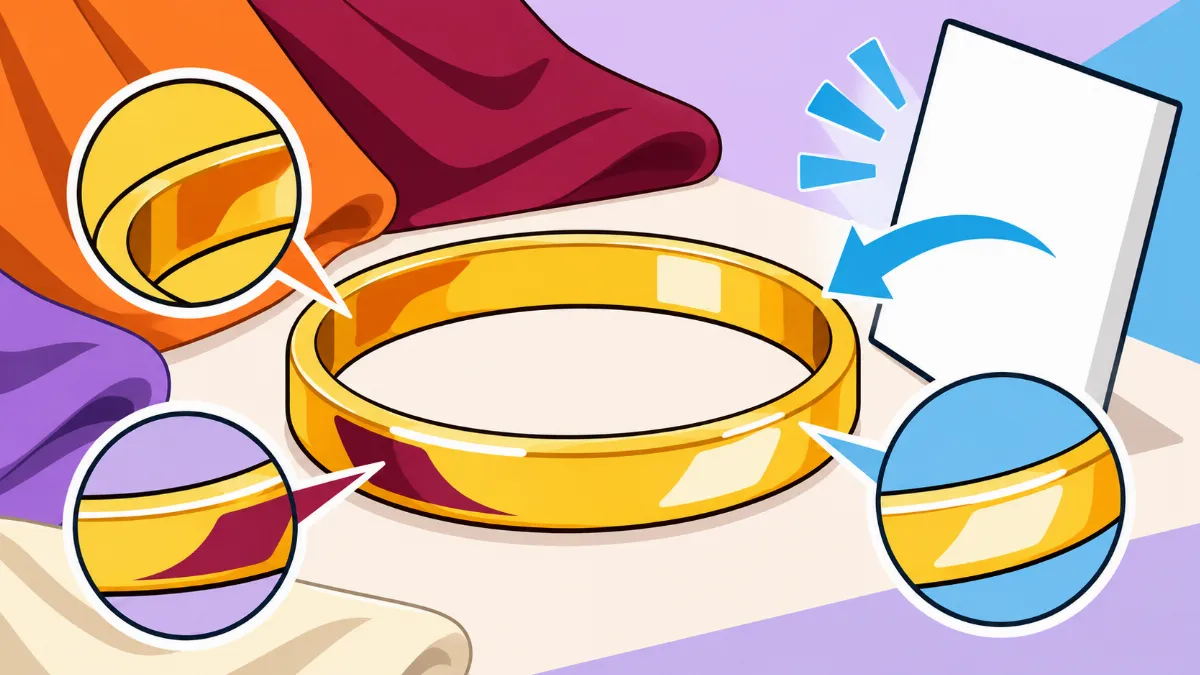
4. Colored Background Reflections
Gold jewelry often has polished, reflective surfaces.
These surfaces reflect surrounding objects and colors.
A yellow, beige, orange, or brown background can introduce warm reflections onto the jewelry.
For example, photographing a polished gold bracelet near a mustard-colored fabric may create additional yellow reflections.
These reflections can remain visible even after adjusting the overall white balance.
5. Excessive Saturation
Saturation controls color intensity.
If you increase saturation too much, yellow gold may become excessively vibrant.
An overly saturated photograph can make gold appear orange or artificial.
6. Inaccurate Editing Presets
Some photo editing presets add warmth or increase yellow and orange saturation.
These settings may work for certain portraits or lifestyle photographs but may be unsuitable for color-sensitive jewelry product images.
Applying the same preset to every jewelry photograph can create inconsistent metal colors.
7. Incorrect Monitor Settings
The display used for editing can influence color decisions.
If your monitor is too warm or uses inaccurate color settings, you may make corrections that look wrong on other devices.
For commercial jewelry photography, a properly calibrated display is helpful.
Why Accurate Gold Color Matters for Online Jewelry Stores
Product photographs communicate important information about jewelry.
Customers use images to examine metal colors, gemstone details, finishes, and product designs.
For example, yellow gold, rose gold, and white gold should have visibly different appearances.
If a photograph contains a strong yellow cast, those differences may become difficult to distinguish.
More Accurate Product Representation
Correct color helps the photograph resemble the actual item.
This is particularly important for customers comparing different metal options.
Consistent Jewelry Catalogs
A jewelry store may display hundreds of product photographs.
If some yellow-gold rings appear pale while others look orange, the catalog may appear inconsistent.
Color correction helps maintain a repeatable presentation.
Better Product Comparisons
Customers may compare similar rings, bracelets, and necklaces before purchasing.
Accurate colors help them evaluate the differences between products.
Fewer Misleading Visual Changes
Excessive color editing can make jewelry appear to be a different metal or finish.
A careful editing workflow reduces that risk.
How to Fix Yellow Cast in Gold Jewelry Photos in Lightroom
Adobe Lightroom provides several tools for correcting unwanted color casts.
The most useful starting points are white balance, temperature, tint, and the Color Mixer.
Here is a practical workflow.
Step 1: Import the Original Jewelry Photograph
Open Lightroom and import the highest-quality original file available.
RAW files generally allow more flexibility for white balance and exposure correction.
If you only have a JPEG, you can still adjust its colors, but the editing latitude may be more limited.
Before making corrections, examine the jewelry and background carefully.
Identify if the entire photograph is yellow or if only certain metal reflections appear too warm.
Step 2: Check the White Balance
Open the Color controls.
Locate the white balance settings.
Lightroom includes temperature and tint adjustments that influence the overall color balance.
If the entire image appears yellow, reducing the warm temperature may help.
However, do not immediately move the temperature slider toward blue without evaluating the product.
Gold should retain its natural warmth.
Step 3: Use the White Balance Eyedropper
If the photograph contains a reliable neutral reference, use the White Balance Selector.
For example, a neutral gray card photographed under the same lighting can provide a useful starting point.
Select the neutral area using the eyedropper.
Lightroom will adjust the white balance based on the selected reference.
Avoid selecting the yellow-gold metal itself because it is not supposed to be neutral.
Likewise, a cream-colored backdrop or reflective highlight may not be a reliable white balance reference.
Step 4: Fine-Tune Temperature and Tint
After applying the initial white balance correction, inspect the photograph.
Adjust temperature gradually if the image remains too warm.
Use tint when there is an unwanted green or magenta shift.
For example, cooling a photograph may reduce excess yellow while leaving a slight green cast.
A small tint correction may improve the result.
Avoid making large changes without checking the jewelry against a reliable reference.
Step 5: Adjust Yellow and Orange Colors Selectively
If the background looks correct but the jewelry remains excessively yellow, examine the Color Mixer.
This tool allows targeted adjustments to specific color ranges.
You may refine yellow or orange saturation, hue, and luminance.
However, make small changes.
Reducing yellow saturation excessively can make the gold appear pale or gray.
Changing orange hue too aggressively may make the metal look unnatural.
Also remember that color ranges can overlap with gemstones, reflections, and surrounding objects.
Step 6: Use Masks for Local Corrections
Sometimes, only one part of the jewelry contains an unwanted reflection.
For example, a yellow-gold ring may have an orange reflection on the inner shank.
A global adjustment might change the entire ring unnecessarily.
Instead, use a mask to isolate the affected area.
Apply a small correction to temperature, saturation, or color.
Keep the transition natural.
Step 7: Compare With the Original
Toggle the edit on and off.
Check if the photograph looks more accurate without losing the natural gold appearance.
If possible, compare the result with the actual jewelry under controlled neutral lighting or an approved product reference.
Step 8: Export the Corrected Photograph
Once the colors are satisfactory, export the image using the appropriate file settings.
For online product photographs, sRGB is commonly a practical output color space.
Check the final image for accurate colors, clean backgrounds, and preserved details.
How to Remove Yellow Cast in Photoshop
Adobe Photoshop provides more detailed control when the yellow cast affects specific jewelry surfaces.
Curves, Color Balance, Hue/Saturation, and layer masks are particularly useful.
Step 1: Open the Original Image
Open the photograph in Photoshop.
Preserve the original file and use non-destructive editing methods when possible.
Adjustment layers allow you to make changes without permanently altering the source pixels.
Step 2: Identify the Affected Areas
Look carefully at the background, metal surfaces, and gemstones.
Determine if the yellow color cast affects the entire photograph or only selected areas.
For example, a white background that appears cream may indicate an overall white balance issue.
An isolated orange reflection on a gold band may require localized correction.
Step 3: Use a Curves Adjustment Layer
Create a Curves adjustment layer.
You can adjust individual red, green, and blue channels to correct unwanted color shifts.
If you have a reliable neutral reference in the photograph, the gray-point eyedropper can help correct the color cast.
However, selecting a non-neutral area can create inaccurate results.
Step 4: Try Color Balance for Fine Corrections
Create a Color Balance adjustment layer if the image still looks too warm.
Color Balance allows you to adjust relationships between colors such as cyan and red, magenta and green, and yellow and blue.
Make small corrections while observing the jewelry.
Avoid removing the natural yellow color from the actual metal.
Step 5: Use Hue/Saturation Carefully
If a particular color range remains too intense, create a Hue/Saturation adjustment layer.
Target the affected yellow or orange range.
Reduce saturation slightly if necessary.
You can also adjust hue or lightness, but avoid changes that alter the actual alloy color.
Step 6: Mask the Correction
Use an adjustment layer mask to limit the correction to affected areas.
For example, if a warm reflection affects only the outer shank, isolate that area rather than changing the entire photograph.
Use soft, controlled mask transitions.
Step 7: Protect Diamonds and Gemstones
If the photograph contains diamonds or colored gemstones, review them separately.
A global yellow adjustment can influence gemstone reflections.
For example, cooling an entire photograph may alter the appearance of a ruby, emerald, or colored diamond.
Protect areas that do not need correction.
Step 8: Check the Finished Image
Zoom in and inspect the metal edges, prongs, reflections, and gemstone details.
Check the full photograph at normal viewing size.
Compare the edited result with a reliable reference before exporting.
Should You Reduce Yellow Saturation or Adjust White Balance First?
In most cases, start with white balance.
White balance correction addresses the color of the lighting across the photograph.
Selective saturation adjustments are more appropriate when a particular color remains too strong after the lighting has been corrected.
For example, imagine a yellow-gold ring photographed against a white background.
If both the background and ring appear excessively warm, begin with global white balance.
If the background becomes neutral but one area of the gold remains too orange, use a local correction.
Avoid immediately reducing all yellow saturation.
This can remove the jewelry's natural warmth and make the product appear inaccurate.
A useful rule is:
**Correct the lighting-related color cast first, then refine specific unwanted reflections.**
How to Fix Yellow Cast on White Jewelry Backgrounds
White backgrounds are common in e-commerce jewelry photography.
However, they can develop yellow tones because of lighting, reflections, or incorrect white balance.
Check if the Background Is Actually White
Some jewelry photographers intentionally use ivory, champagne, or cream-colored backgrounds.
Do not automatically force these backgrounds to pure white.
Confirm the required background color first.
Correct Overall White Balance
If the background should be neutral but appears yellow, begin with white balance correction.
Use a neutral reference when available.
Select the Background
If the jewelry is already correctly colored, isolate the background.
A mask allows you to adjust the background without changing the metal.
For example, you can reduce unwanted yellow saturation in the selected background.
Preserve Natural Edges
Background corrections should not create visible halos around the jewelry.
Pay attention to chains, prongs, and small details.
Check Reflections
Even after correcting the background, some warm reflections may remain on the jewelry.
These should be evaluated separately.
How to Remove Yellow Reflections From Diamonds
Diamonds can reflect surrounding colors.
When a diamond is positioned near warm gold or photographed under warm lighting, some facets may appear yellow.
This is not always an editing defect.
A diamond's appearance depends on its actual body color, surrounding metal, lighting, and reflections.
Identify the Source of the Yellow Tone
First, determine if the diamond has a natural warm appearance or if the yellow tone comes from the lighting.
Use an accurate reference where possible.
Correct Global Color Casts
If the entire photograph has an unwanted warm tint, begin with white balance correction.
Apply Local Adjustments Carefully
If only a few facets contain distracting warm reflections, consider a subtle localized correction.
Avoid making all facets identical.
Preserve the Original Diamond Appearance
Do not change the apparent diamond color grade or create facets that were not recorded.
For online jewelry listings, accurate gemstone representation is important.
**The goal is to correct unwanted photographic color contamination, not to make every diamond appear colorless.**
How to Fix Orange Gold Jewelry Photos
Yellow-gold jewelry can sometimes appear too orange.
This may happen because of warm lighting, colored reflections, excessive saturation, or incorrect white balance.
Begin by examining the white or neutral areas of the photograph.
If those areas also appear warm, adjust white balance first.
If the orange color is limited to the metal, compare it with the actual product.
Use selective hue or saturation adjustments only when the orange tone is inaccurate.
Remember that different gold alloys can have different natural colors.
Do not force every yellow-gold item into the same shade.
Yellow Gold vs. Rose Gold vs. White Gold: Why Color Accuracy Matters
Jewelry photography often includes several metal types.
Each requires different color treatment.
Yellow Gold
Yellow gold naturally has warm yellow tones.
Its appearance varies with alloy composition and finish.
Correct unwanted lighting casts without removing its characteristic warmth.
Rose Gold
Rose gold has pinkish or copper-related warmth.
An overly strong yellow adjustment may make rose gold appear too orange or closer to yellow gold.
Use product references to preserve the intended color.
White Gold
White gold may appear silvery or slightly warm depending on its alloy and finish.
Rhodium-plated white gold generally has a different surface appearance from unplated white gold.
An unwanted yellow cast can make white gold look like a different metal.
Do not assume every warm tint on white gold is caused by poor editing.
Mixed-Metal Jewelry
Some pieces combine yellow gold, white gold, and rose gold.
These photographs may require separate color corrections for each metal area.
A single global color adjustment may not preserve all three accurately.
How to Prevent Yellow Cast During Jewelry Photography
Fixing the problem during photography is often easier than correcting it afterward.
A controlled lighting setup reduces the amount of retouching required.
1. Use Consistent Lighting
Avoid mixing unrelated light sources when possible.
For example, combining warm indoor lamps with cooler daylight may create different colors across the product.
2. Photograph a Neutral Gray Card
Place a reliable neutral gray card under the same lighting conditions as the jewelry.
Take a reference photograph before starting the product shoot.
This can help establish an appropriate white balance during editing.
3. Use Neutral Surroundings
White, gray, and other neutral surfaces can help reduce unwanted color reflections.
Be aware that polished jewelry reflects nearby walls, clothing, reflectors, and props.
4. Control Reflections
Use suitable diffusion and carefully positioned neutral cards to manage reflections.
A white reflector can provide light-colored reflections.
A black card can create controlled dark areas that help define the metal's shape.
Not every dark reflection is unwanted.
5. Shoot in RAW When Available
RAW files can provide greater flexibility when correcting white balance.
This is particularly useful for commercial jewelry photography.
6. Avoid Excessive Camera Saturation
Strong in-camera color processing can make metal tones appear unnatural.
Use suitable settings and review the result before photographing the entire collection.
7. Prepare the Jewelry Properly
Clean dust and fingerprints before the shoot.
A clean product requires less retouching afterward.
8. Review Images During the Shoot
If possible, inspect photographs on a color-managed display.
Compare the image with the actual jewelry under suitable lighting.
Correct obvious problems before completing the full session.
Can You Fix Yellow Cast in Gold Jewelry Photos Using a Phone?
Yes. Many basic color corrections can be completed with mobile editing applications.
For example, Lightroom Mobile provides temperature, tint, saturation, and selective color controls.
A smartphone editor may be suitable for correcting small yellow casts in simple jewelry photographs.
Basic Mobile Editing Workflow
Open the highest-quality image available.
Examine the overall white balance.
Adjust temperature gradually if the photograph is excessively warm.
Correct tint if necessary.
Use selective color controls to refine remaining unwanted yellow or orange tones.
Compare the result with a reliable reference.
However, detailed jewelry reflection cleanup may require more precise tools.
Small prongs, gemstones, chains, and polished metal surfaces are difficult to edit accurately on a small screen.
For commercial product photography, desktop editing may provide greater control.
How to Batch Correct Yellow Cast Across Multiple Jewelry Photos
Jewelry businesses often photograph many products in the same studio setup.
If the lighting remains consistent, the photographs may share similar color correction requirements.
This makes some white balance adjustments suitable for batch processing.
Step 1: Group Similar Photographs
Separate images by lighting setup and product type.
For example, photographs taken under one studio lighting arrangement can form a group.
Step 2: Correct a Reference Photograph
Choose a representative image and adjust white balance.
Use a neutral reference if available.
Step 3: Apply Suitable Settings
Copy the white balance correction to photographs taken under the same lighting.
Step 4: Review Different Gold Alloys
Yellow gold, rose gold, and white gold may need different selective adjustments.
Do not apply identical color mixer changes blindly.
Step 5: Check Every Final Image
Review metal colors, gemstone appearance, and background neutrality.
The purpose of batch processing is to reduce repetitive work while maintaining accuracy.
Common Mistakes When Fixing Yellow Cast in Jewelry Photos
Several editing mistakes can create more problems than the original color cast.
Removing Too Much Yellow
Yellow gold should remain yellow.
Excessive cooling or desaturation can make the jewelry look pale or gray.
Using the Gold as a Neutral Reference
A white balance eyedropper should be applied to a reliable neutral area.
Gold metal is not neutral gray.
Applying Strong Global Adjustments
A global correction may change gemstones or other areas that were already accurate.
Use local masks when necessary.
Increasing Contrast Excessively
Strong contrast can make gold surfaces appear harsh and may exaggerate unwanted reflections.
Removing All Dark Reflections
Dark reflections help define polished metal shapes.
Removing every dark area can make the jewelry look flat.
Changing the Metal Color
Do not make yellow gold look like rose gold or white gold unless the task specifically involves an accurately represented product color variation.
Editing Without a Reliable Reference
The original photograph is not always an accurate color reference.
When possible, compare with the actual jewelry or a controlled reference photograph.
Ignoring Display Calibration
An inaccurate monitor can lead to incorrect color decisions.
Use an appropriate color-managed workflow when accuracy is important.
When Is a Yellow Cast Difficult to Correct?
Some color problems are more complicated than others.
For example, a photograph may contain mixed lighting where one side of the jewelry appears orange and the other side looks blue.
In this situation, a single white balance adjustment may not correct every area.
Selective masks may be required.
Another problem occurs when colored reflections cover complicated metal surfaces.
Detailed manual retouching may be necessary to reduce these reflections while preserving natural metal texture.
Severe overexposure can also remove useful color and surface information.
If the original photograph lacks important details, editing may not accurately recover them.
In these situations, reshooting under controlled lighting may be the better option.
Should You Use AI to Correct Gold Jewelry Colors?
AI-assisted photo editing tools can help with some color adjustments.
For example, certain applications provide automatic white balance, subject selection, and color correction.
These tools may be useful when preparing large jewelry image collections.
However, automatic corrections do not always distinguish between natural gold color and an unwanted yellow cast.
An AI tool might reduce all warm tones, making yellow gold appear unnatural.
Generative tools may also alter gemstone details, metal edges, or reflections.
For accurate commercial photography, review AI-edited images carefully.
Use reliable product references and maintain manual control over important details.
AI can assist with editing, but it should not be trusted to determine the true color of a jewelry product without suitable reference information.
How Professional Jewelry Photo Retouchers Correct Color Casts
Professional jewelry photo editing involves more than moving a temperature slider.
A retoucher must evaluate the product, lighting, surface reflections, gemstones, and background.
For example, a yellow-gold diamond ring may contain an excessive yellow cast in the background but accurate warm tones in the metal.
A global cooling adjustment could correct the background while damaging the gold appearance.
A professional editor may instead separate the background and jewelry using masks.
They can then correct each area independently.
Common Professional Corrections
These may include:
- White balance correction
- Local color adjustments
- Metal color matching
- Background cleanup
- Controlled reflection correction
- Gemstone detail review
- Fine edge cleanup
- Final color consistency checks
The original jewelry structure should remain unchanged.
This includes ring shape, prong placement, gemstone size, engravings, and metal thickness.
Accurate jewelry editing should improve the image without misrepresenting the actual product.
Why Jewelry Businesses Need Consistent Gold Colors
Online jewelry stores often display multiple photographs of the same product or collection.
If one image makes the ring look orange and another makes it look pale yellow, customers may have difficulty evaluating its appearance.
Consistent editing helps maintain similar colors across product listings.
However, consistency does not mean making every gold item identical.
Different alloys and finishes may have genuine color differences.
An appropriate editing workflow preserves those differences while removing unwanted photography-related color shifts.
For example, a brand may want consistent white backgrounds across its ring collection.
At the same time, every ring should retain its actual metal tone.
A clear editing guide and approved references can help maintain these standards.
How Photo Editing Company Can Help With Gold Jewelry Color Correction
Gold jewelry photography often requires detailed color correction and reflection management.
At **Photo Editing Company**, we provide professional jewelry photo retouching services for photographers, jewelry businesses, and online sellers.
Our services include:
- Jewelry color correction
- Yellow and orange cast reduction
- Unwanted reflection cleanup
- Background removal
- Metal surface retouching
- Gemstone detail correction
- Dust and spot removal
- Fine jewelry edge cleanup
- Consistent product image preparation
We work with original photographs and client references to maintain accurate jewelry designs, metal colors, gemstone details, and natural reflections.
If you have several gold jewelry photographs that appear too yellow, providing sample images and an approved metal color reference can help establish the appropriate editing approach.
You can learn more about our services at Photo Editing Company.
Frequently Asked Questions
Why Do My Gold Jewelry Photos Look Too Yellow?
Common causes include incorrect white balance, warm lighting, colored background reflections, and excessive saturation.
The problem may affect the entire image or only particular reflections.
How Do I Remove Yellow Cast Without Changing Gold Color?
Correct the overall white balance using a reliable neutral reference.
Then use selective color adjustments to reduce unwanted yellow or orange tones while preserving the jewelry's actual metal color.
Can Lightroom Fix Yellow Gold Jewelry Photos?
Yes. Lightroom provides white balance, temperature, tint, Color Mixer, and masking tools that can help correct unwanted color casts.
How Can I Fix Yellow Cast in Photoshop?
Use adjustment layers such as Curves, Color Balance, or Hue/Saturation.
Apply layer masks when corrections should affect only specific areas.
Should Gold Jewelry Look Yellow in Photos?
Yes. Yellow gold naturally contains yellow tones.
The goal is to correct unwanted color contamination rather than remove the metal's natural warmth.
Why Do Diamonds Look Yellow in Gold Ring Photos?
Diamonds may reflect warm lighting or nearby yellow-gold surfaces.
Their actual body color can also contribute to their appearance.
Use reliable references before deciding which yellow tones should be corrected.
Can I Use Auto White Balance for Jewelry Photography?
Auto white balance may produce acceptable results in some situations.
However, a reliable neutral reference and consistent lighting can provide a more repeatable starting point for color-sensitive product photography.
Can I Fix Yellow Cast on My Smartphone?
Yes. Mobile photo editing applications can provide white balance and selective color controls.
Complicated jewelry reflections may be easier to correct using desktop software.
Does Reducing Yellow Saturation Fix Every Jewelry Photo?
No. Excessive yellow saturation reduction may make gold look pale, gray, or inaccurate.
Start with white balance and use selective adjustments only where needed.
Should I Hire a Professional Jewelry Photo Editor?
Professional retouching may be useful when color problems involve complicated reflections, multiple metal types, gemstones, or large product collections.
Final Thoughts
Fixing a yellow cast in gold jewelry photographs requires careful color correction.
The goal is not to remove yellow from the entire image.
Yellow gold naturally has a warm appearance, and that warmth should remain visible.
Start by identifying the cause of the unwanted color.
Incorrect white balance, warm lighting, colored reflections, and excessive saturation can all contribute to the problem.
Use white balance correction as the starting point.
Then refine particular areas with selective color controls and masks.
When editing in Photoshop or Lightroom, compare the result with a reliable reference whenever possible.
Avoid excessive desaturation, strong global cooling, or other adjustments that make the jewelry appear to be a different metal.
For jewelry businesses, maintaining accurate colors is especially important because customers rely on photographs to evaluate the products.
If the images require complicated reflection cleanup or detailed corrections, professional jewelry retouching can provide additional support.
**The best correction removes unwanted yellow color casts while preserving the original gold tone, natural reflections, gemstone details, and jewelry design.**